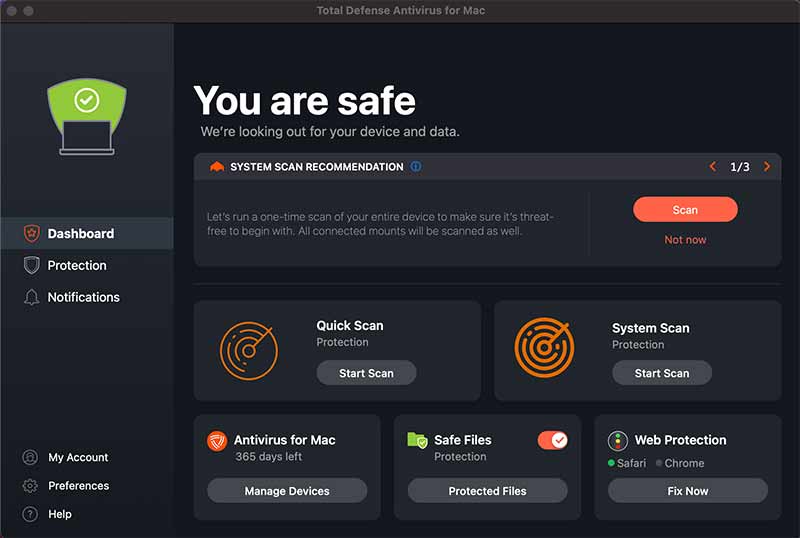
Below are instructions for installation of Essential Anti-Virus for Mac on an existing Total Defense product subscription. See this other article for first-time Mac installation from a retail purchase.
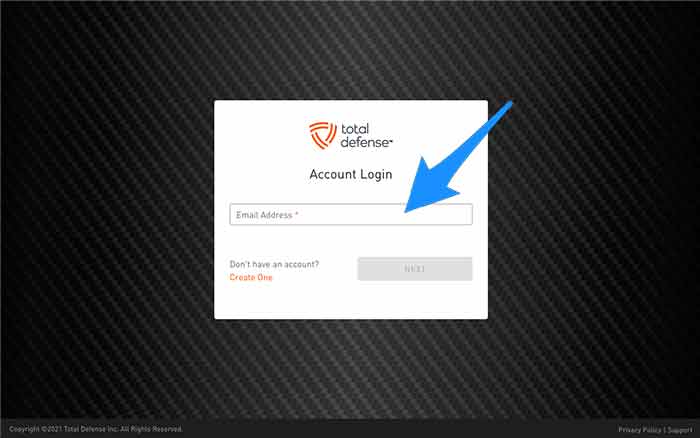
1. Login to your Total Defense Account
- You will be prompted for the account email and password
2. Download
- Select the "Download" button next to the product subscription you would like to install
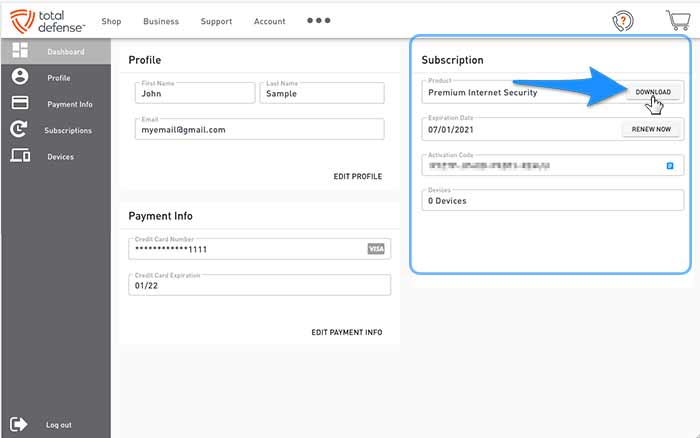
- A new window will open, click the "Download Mac AV" link under Mac Computers

3. Install
- Click the downloaded file to launch the Anti-Virus for Mac installer
- Once the new window opens, click "Allow" to start the installation process
- Follow the on-screen instructions
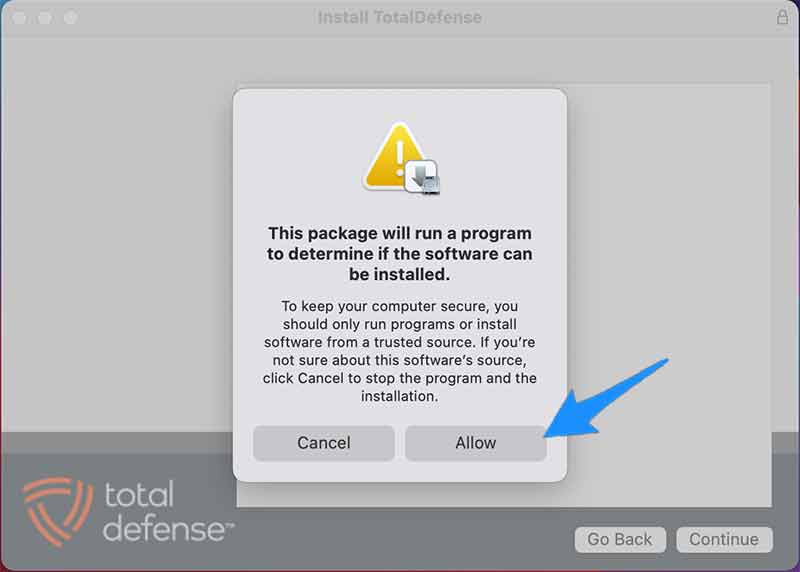
- Click "Continue"
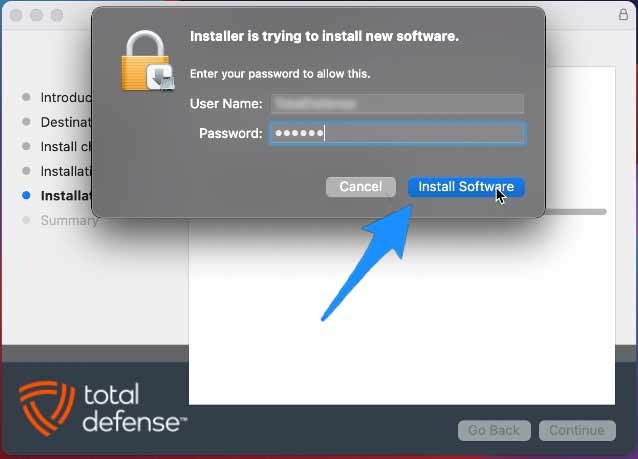
- When prompted, enter your computer's password and click the "Install Software" button
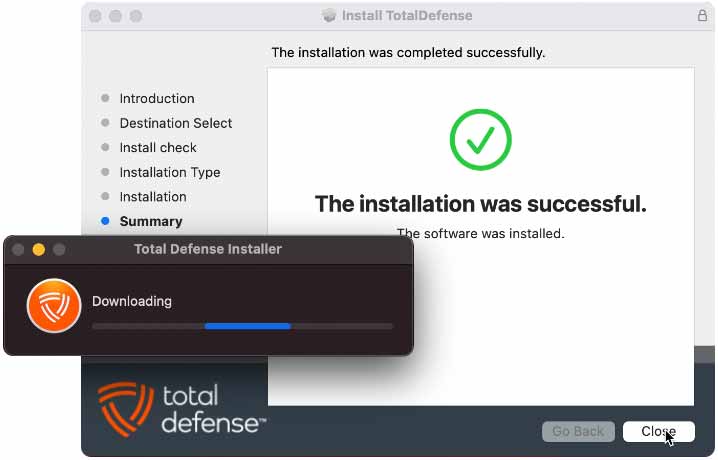
- Allow time for the product to download and install.
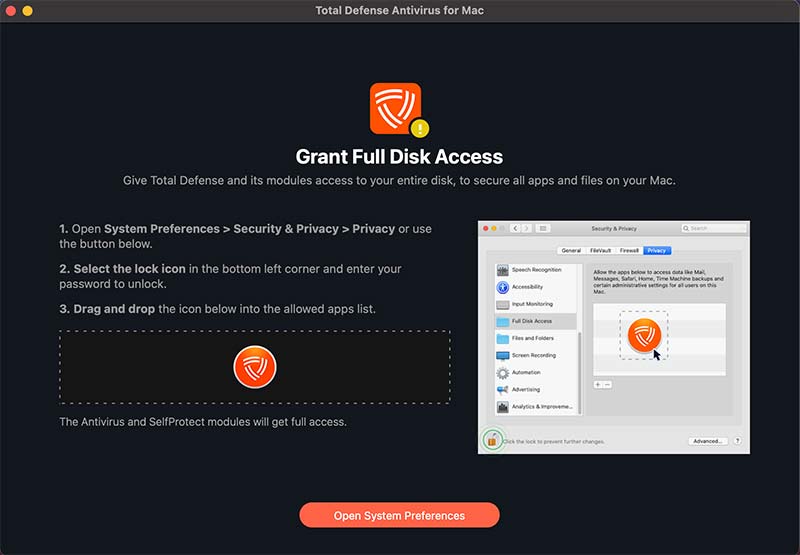
- You will be asked to grant full access to your Total Defense Anti-Virus software
- Click the "Open System Preferences" button
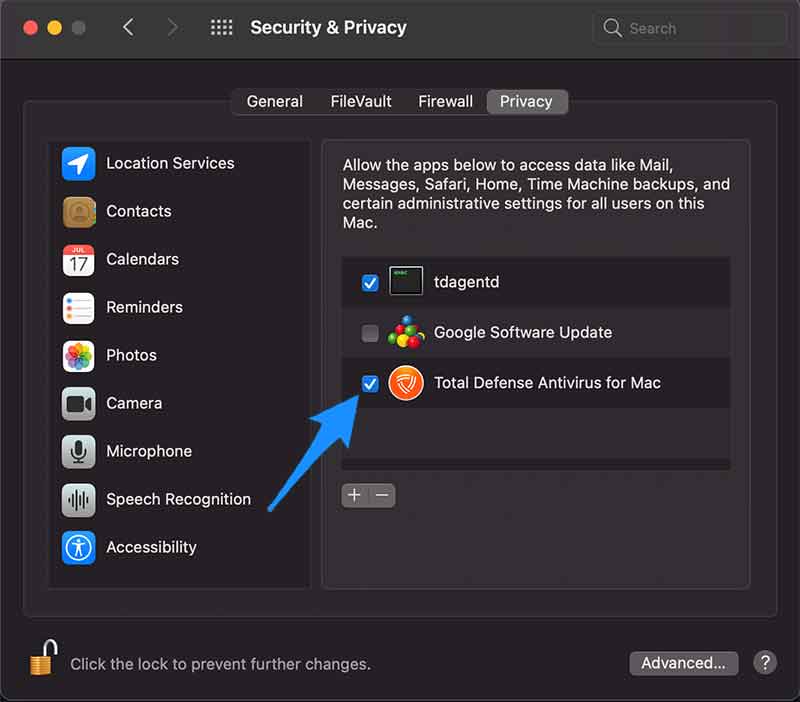
- Check the box to the left of "Total Defense Antivirus for Mac" under Privacy
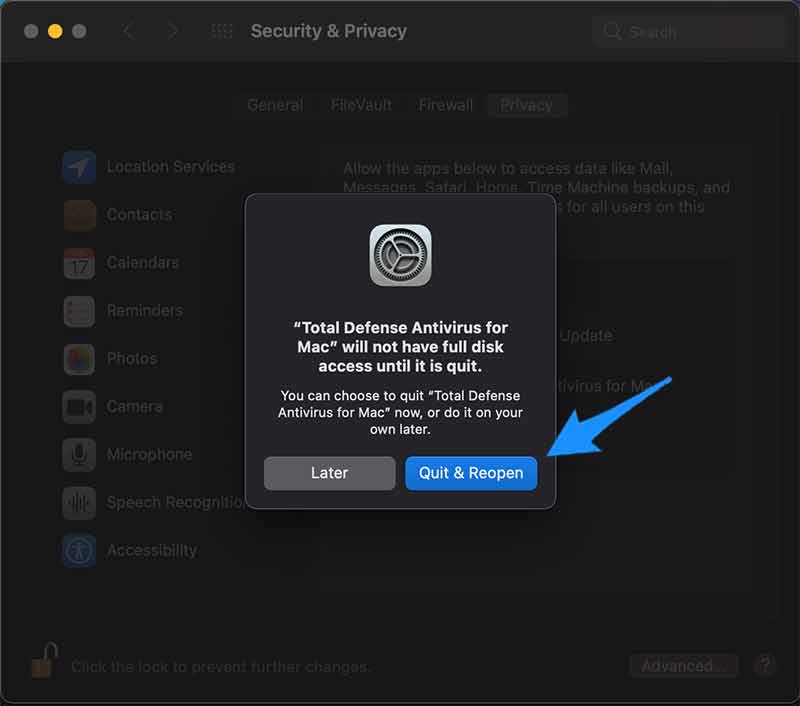
- When prompted, click the "Quit & Reopen" button to finish granting access to your software
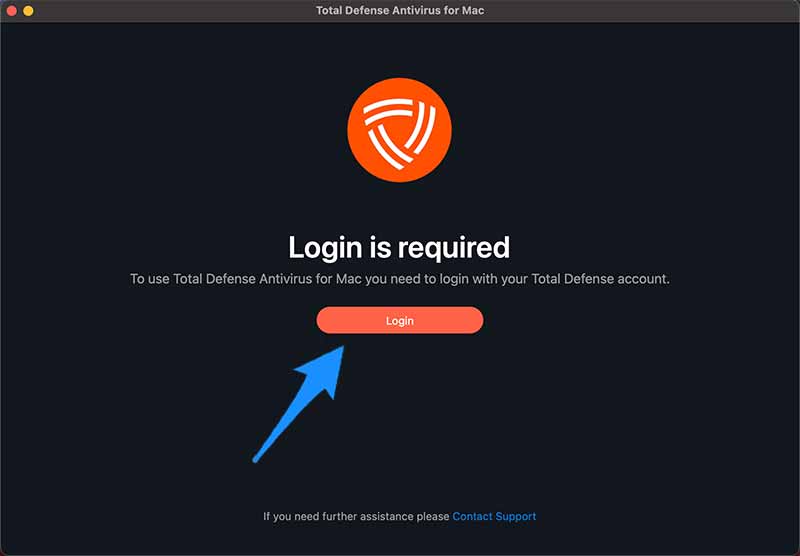
- A window will open and prompt you to login to your Total Defense account. Click the "Login" button
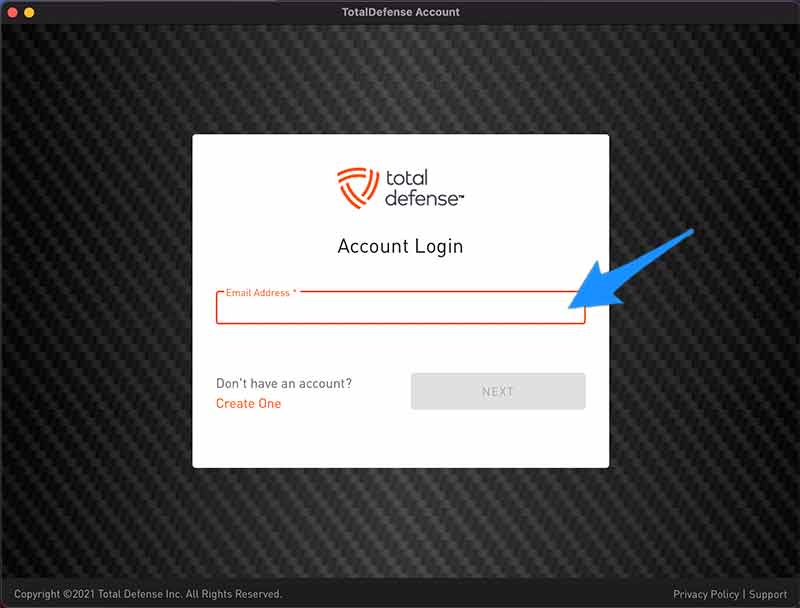
- A new window will open. Enter your email address and click the "Next" button.
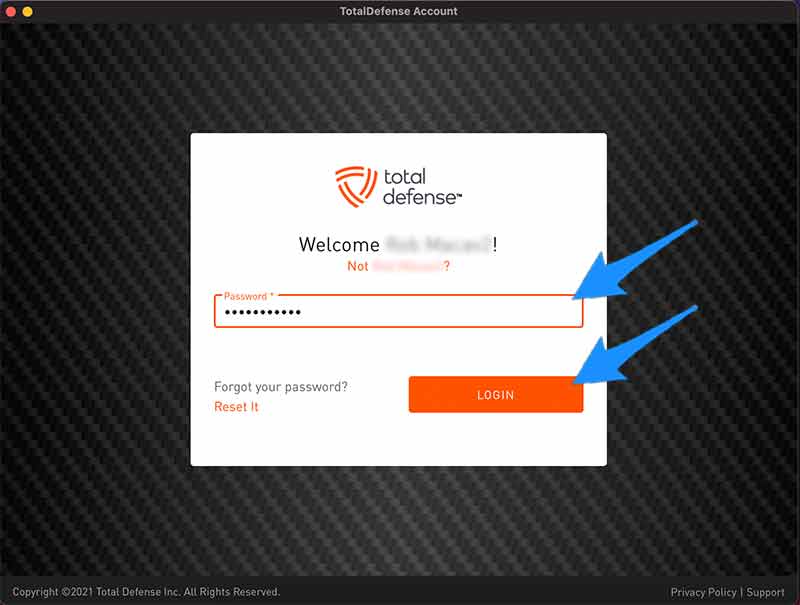
- Enter your Total Defense password and click the "Login" button.
- Wait a few moments. You will be presented with your Total Defense Essential Anti-Virus for Mac software dashboard. Your installation is now complete.