Follow the directions to select files on your local device to perform an online backup.
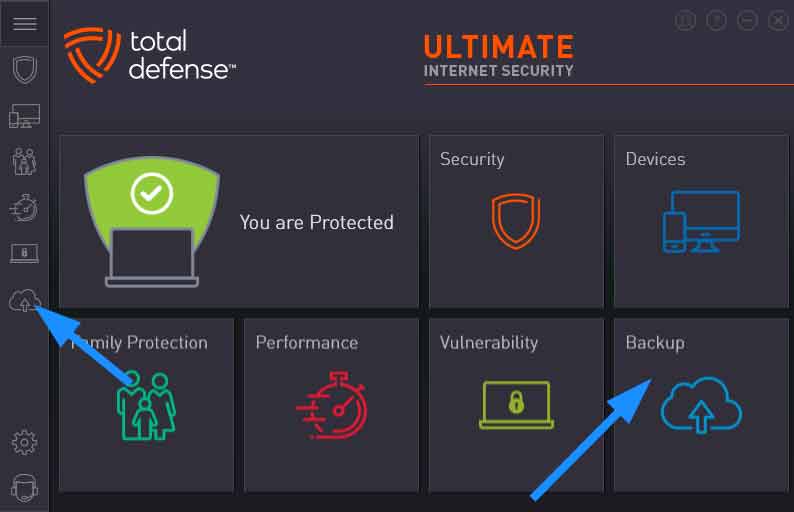
1. Click the "Backup" icon
- from within the Total Defense Console or the Navigation on the left
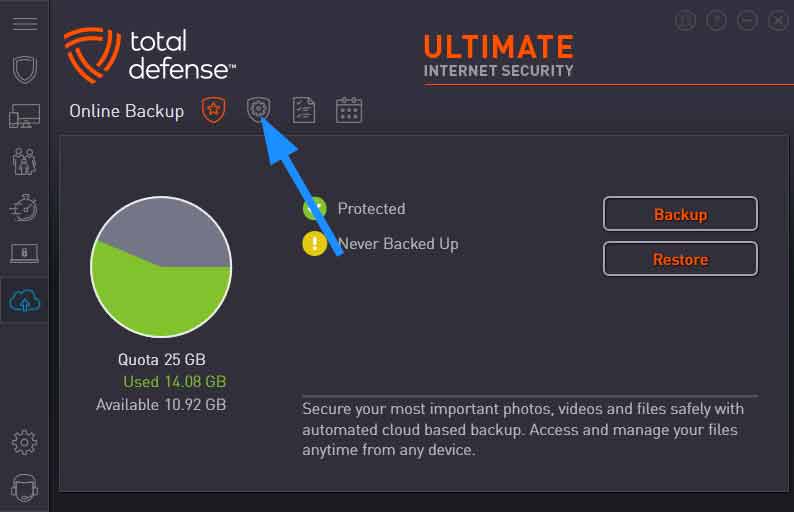
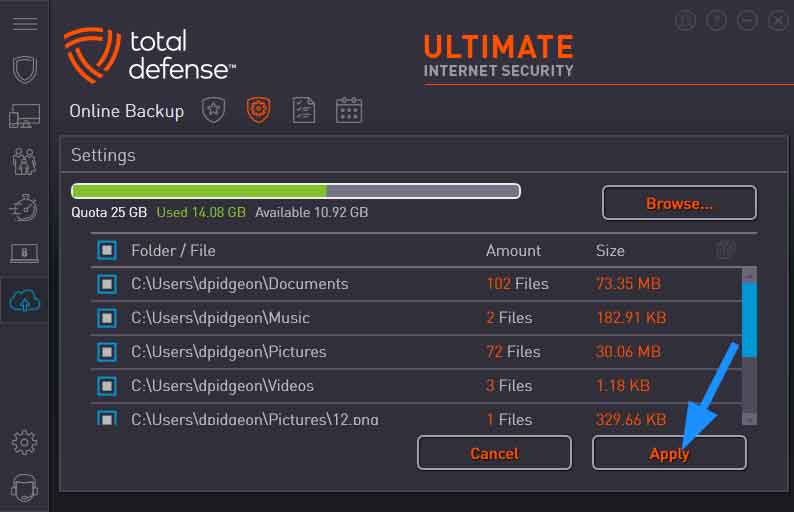
2. Click the "Settings" icon
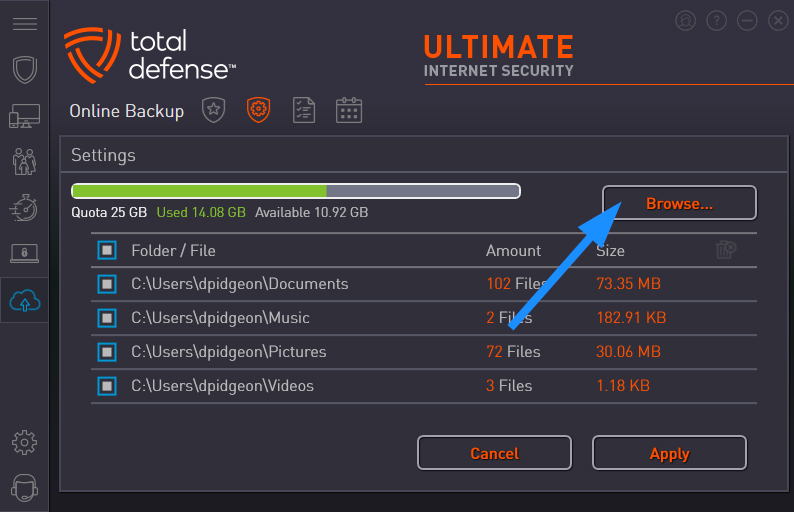
3. Click the "Browse" button
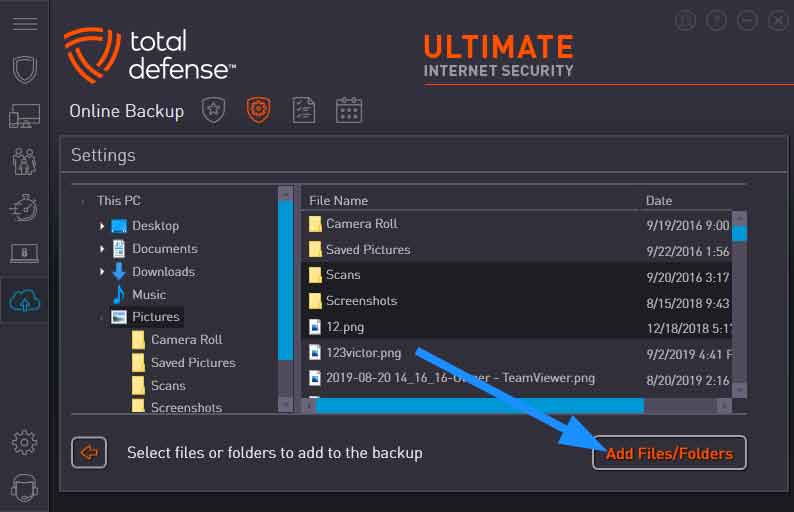
4. Add Files/Folders
- Use the arrows on the left to navigate to the designated folder(s)
- select which files/folders you want backup on the right
- then, click "Add Files/Folders"
5. Click "Apply" button to save settings
- You will see a list of the files/folders added
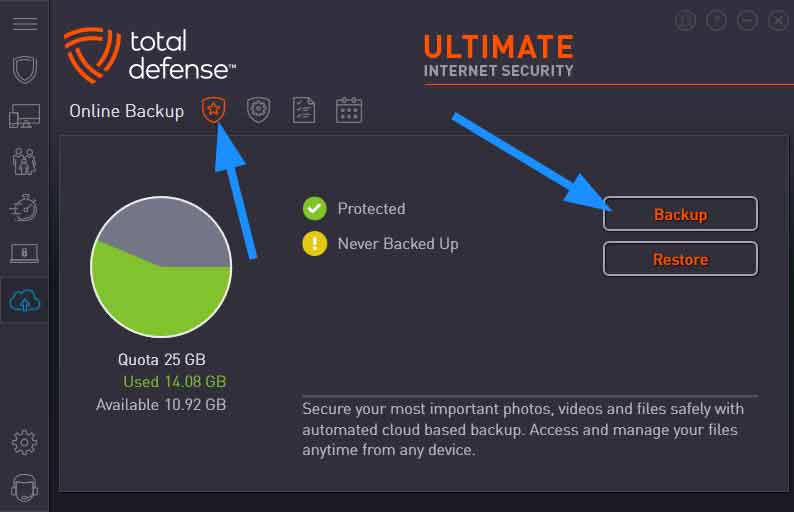
6. Click the "Overview" icon, then click "Backup"
- This starts the online backup process of the files you selected in Settings
Learn How to restore an online backup.
Note: This information pertains to online backup functionality for Total Defense Premium, Unlimited and Ultimate Internet Security Suite software.